Documentation
Technical guides and resources for our apps and services.
Introduction
WhatWali seamlessly connects your WhatsApp account to your Shopify store. Unlike other tools that require complex API approvals, WhatWali uses a simple QR code connection (just like WhatsApp Web) to let you:
- Recover lost sales with abandoned checkout messages.
- Keep customers informed with order updates.
- Chat in real-time using the built-in Inbox.
- Automate support with keyword-based auto-replies.
- Sync Order Status: Automatically tag orders in Shopify based on customer responses.
Getting Started
Installation
- Search for "WhatWali" in the Shopify App Store.
- Click Install.
- You will be redirected to the app dashboard within your Shopify Admin.
Connecting WhatsApp
Before enabling any automations, you must link your WhatsApp number. This is a one-time setup.
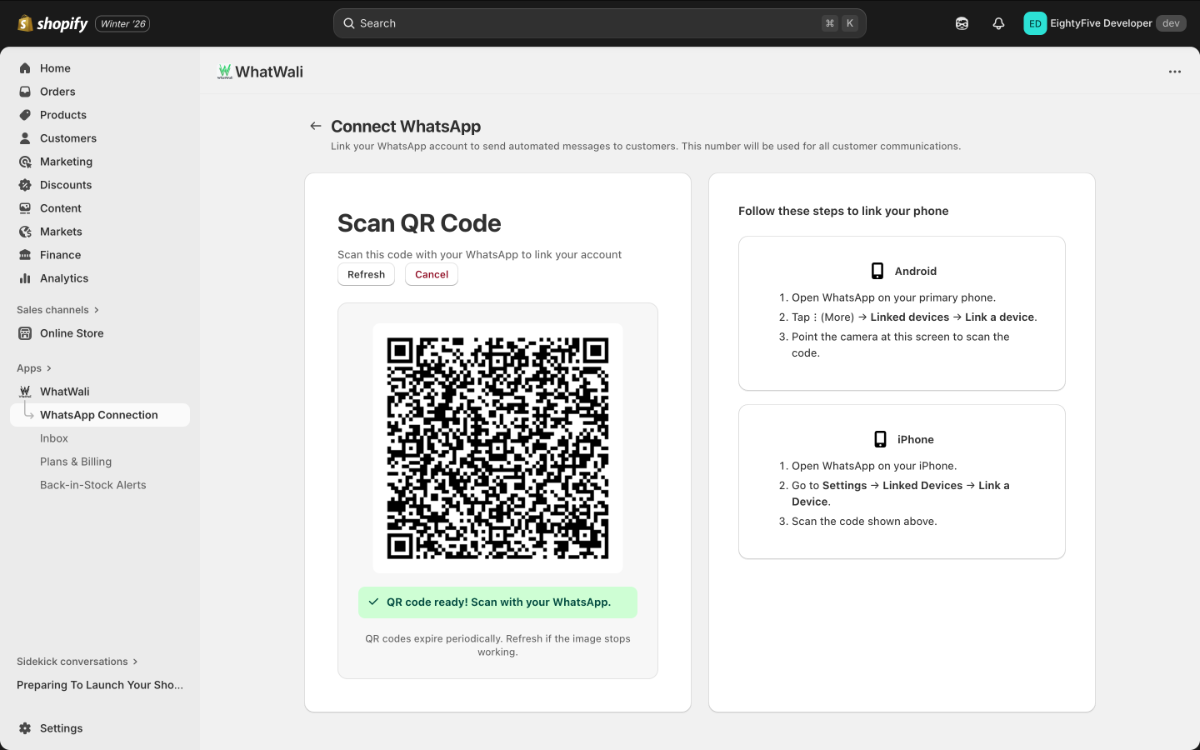
- Navigate to the WhatsApp Login tab in the sidebar.
- You will see a QR Code generated on the screen.
- Open WhatsApp on your mobile phone.
- Go to Settings > Linked Devices > Link a Device.
- Scan the QR code displayed on the WhatWali screen.
- Once connected, the status will change to "Connected".
Dashboard & Inbox
Dashboard
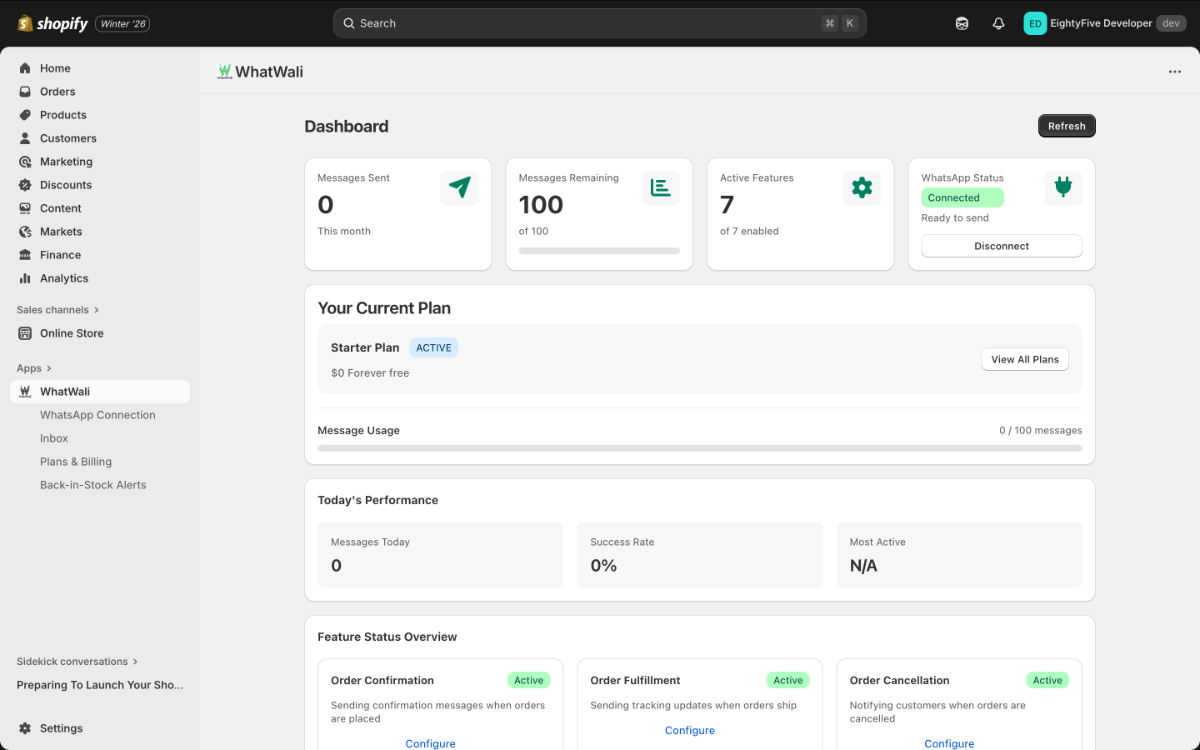
The Dashboard gives you a quick overview of your store's WhatsApp performance, including message usage, automation stats, and recent activity.
Inbox
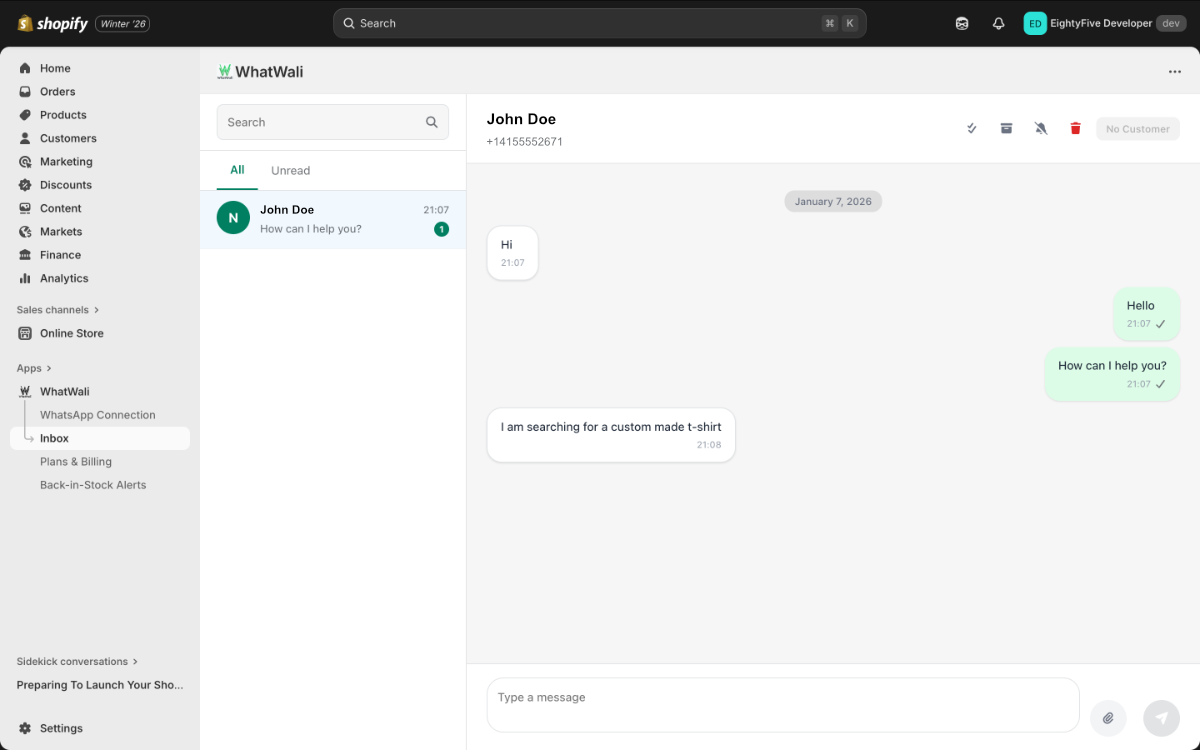
Manage customer conversations directly from Shopify without picking up your phone.
- Real-time Chat: Send and receive messages instantly.
- Order Context: View customer order details while chatting (coming soon).
WhatsApp Chat Widget
Add a floating "Chat with us" button to your storefront to encourage customer inquiries.
- Go to WhatsApp Button in the menu.
- Enable the widget.
- Customize the Message (e.g., "Hi, I need help with...").
- Customize the Position (Left/Right) and Color.
- Click Save.
Automations
WhatWali's core power lies in its ability to send messages automatically based on store events.
Abandoned Checkout Recovery
Recover lost revenue by automatically messaging customers who leave without paying.
- Enable: Toggle the switch to "On".
- Template: Customize the message. Use variables like
{{checkout_url}},{{customer_name}}. - Timing: Set the delay (e.g., 15 minutes after abandonment).
- Minimum Cart Value: (Optional) Only send messages for carts over a certain amount.
Order Notifications & Tagging
Keep customers in the loop at every step and update your Shopify Orders automatically.
Order Confirmation & Tagging
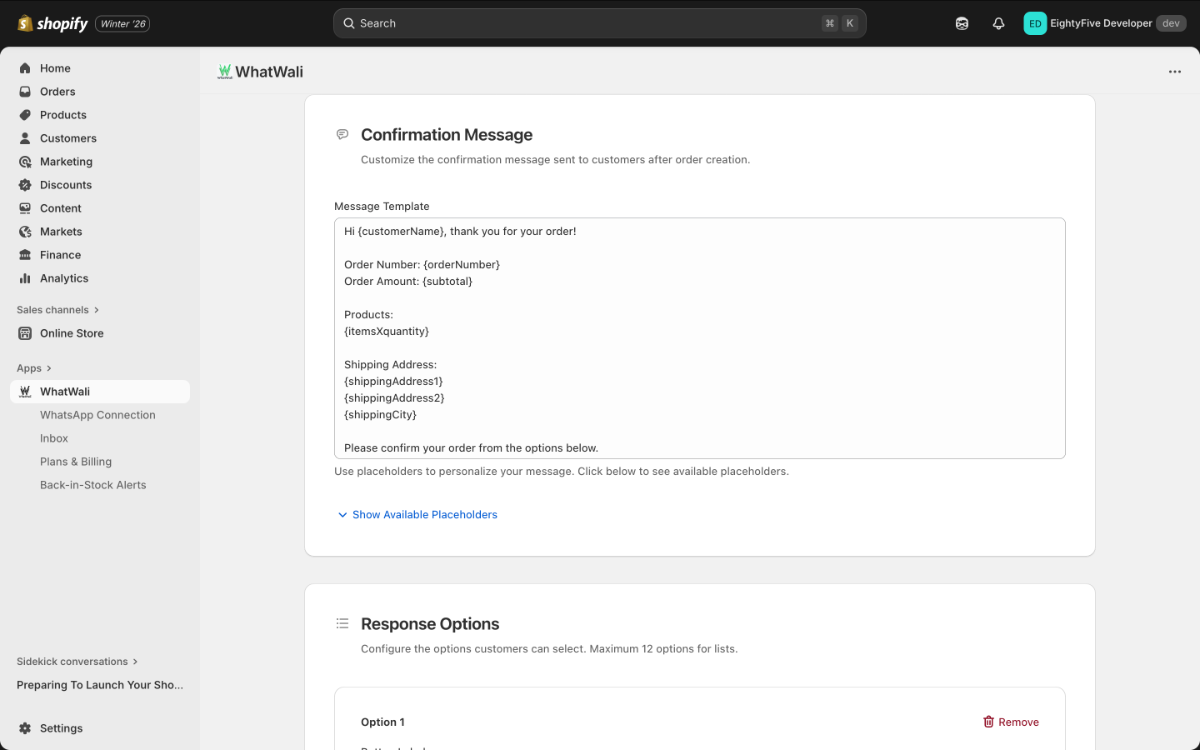
Sent immediately after a purchase is completed. You can ask customers to confirm their order details.
- Smart Tagging: If you use a "Poll" or "Numbered List" in your message (e.g., "Reply 1 to Confirm, 2 to Cancel"), WhatWali will automatically tag the order in Shopify based on their response.
- Example: Customer replies "1" -> Order tagged
Confirmed. - Example: Customer replies "2" -> Order tagged
Cancelled.
- Example: Customer replies "1" -> Order tagged
- Variables:
{{order_id}},{{order_url}},{{total_price}}.
Order Fulfillment
Sent when you fulfill an order and add a tracking number.
Variables: {{tracking_url}}, {{carrier}}.
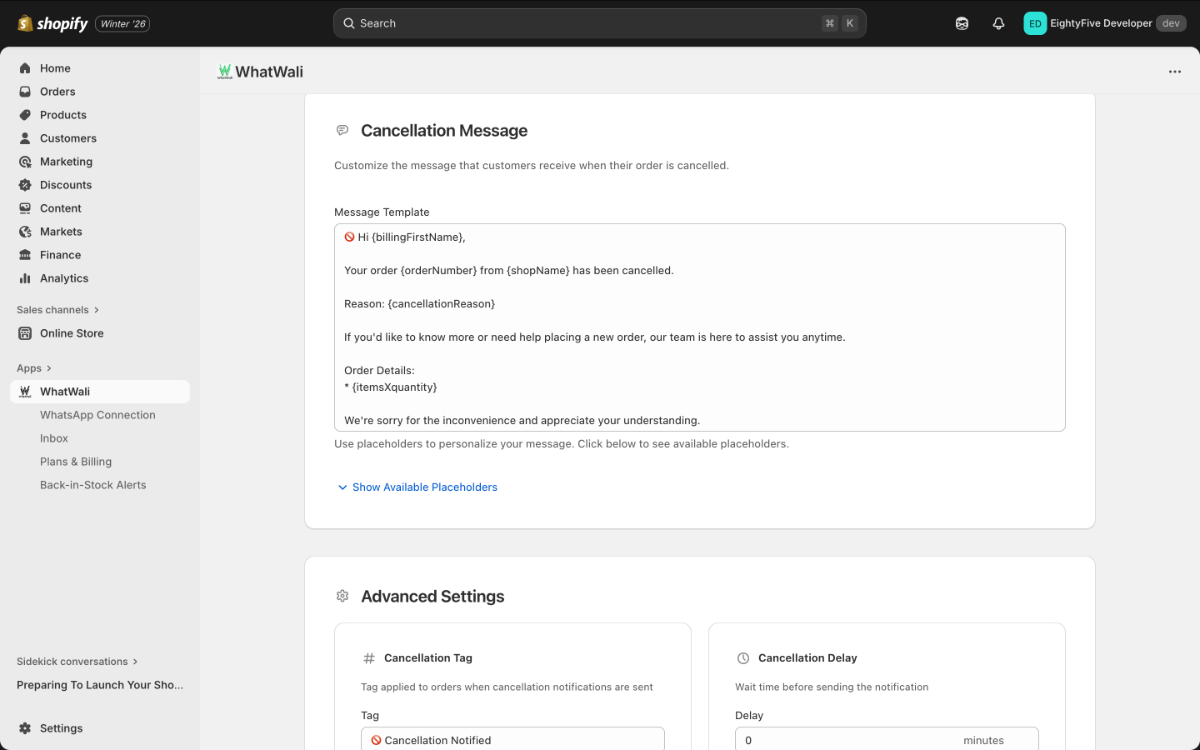
Order Cancellation
Sent if an order is cancelled.
Draft Order Recovery
Perfect for B2B or manual orders. Automatically send a payment link to customers when you create a Draft Order.
Back in Stock Alerts
Let customers subscribe to products that are out of stock and notify them automatically when inventory returns.
- Setup: Ensure the "Notify Me" button is enabled in your theme (via App Embeds).
- Notification: Customize the alert message sent when stock is added.
Auto-Replies
Set up smart keyword matching to answer common questions instantly.
- Example: If a customer replies "Price", send a pricing list.
- Keyword: The word to trigger the reply (exact or partial match).
- Response: The message to send back.
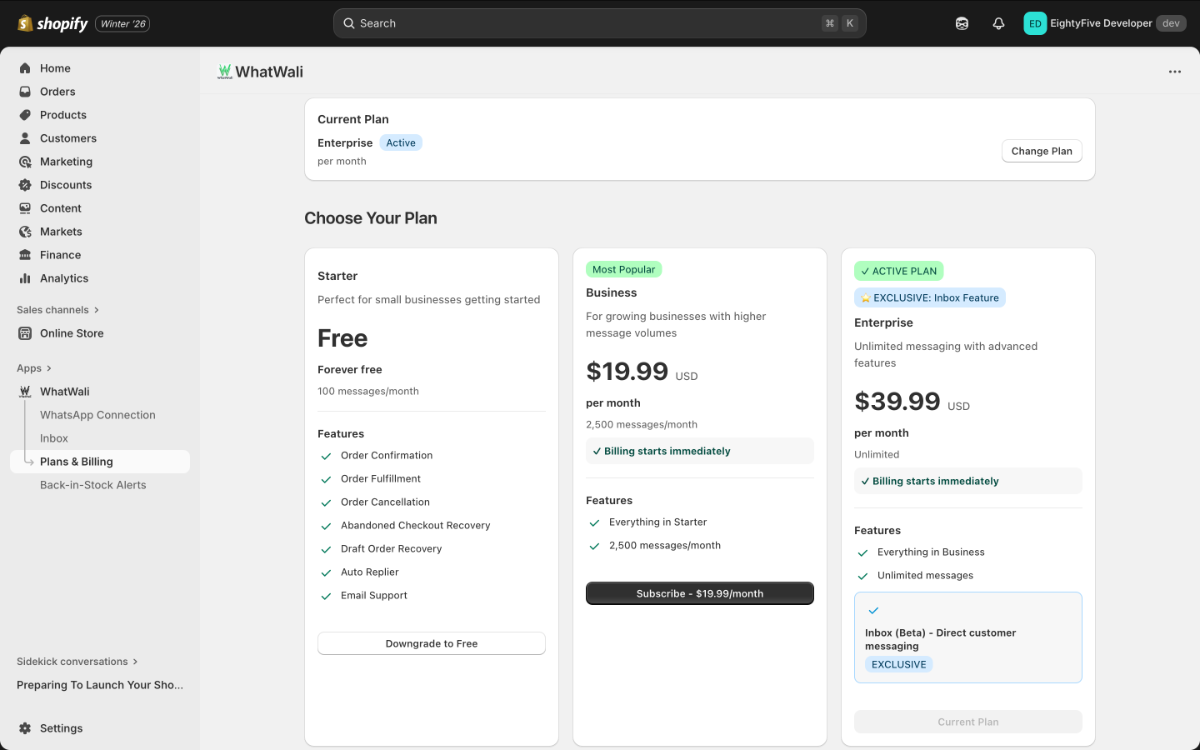
Plans & Billing
Manage your subscription and usage limits.
- Free Plan: Great for testing and small stores.
- Pro Plan: Unlocks higher message limits and advanced automations.
Troubleshooting
Q: My messages are not sending.
- Check if your WhatsApp session is connected in the WhatsApp Login tab.
- Ensure your phone has internet connectivity.
Q: Can I use my personal number?
Yes, WhatWali works with both Personal and Business WhatsApp numbers.
Q: Do I need the official WhatsApp API?
No, WhatWali connects via a QR code session, similar to WhatsApp Web, saving you from per-message API costs.
Getting Started
Kountli helps you track visitors and sales in real-time.
Once installed, Kountli automatically begins tracking visitor sessions. No code injection is required for standard themes.